

Embed Address Authorization (USPS 1583)
Allow your customers to complete USPS address authorization in your own UI.
This feature is available to Stable platform partners. To learn more, see Stable for Platforms or reach out to us: Support.
Overview
Before Stable is authorized to open and scan your customers' mail, we must first collect authorization information and complete USPS Form 1583. For more information on this process, refer to Address Authorization (USPS Form 1583).
This recipe details Embedded address authorization, where your UI collects end user information and IDs, then presents a Stable-hosted signing form to collect signatures. Stable provides full styling control over the signing experience.
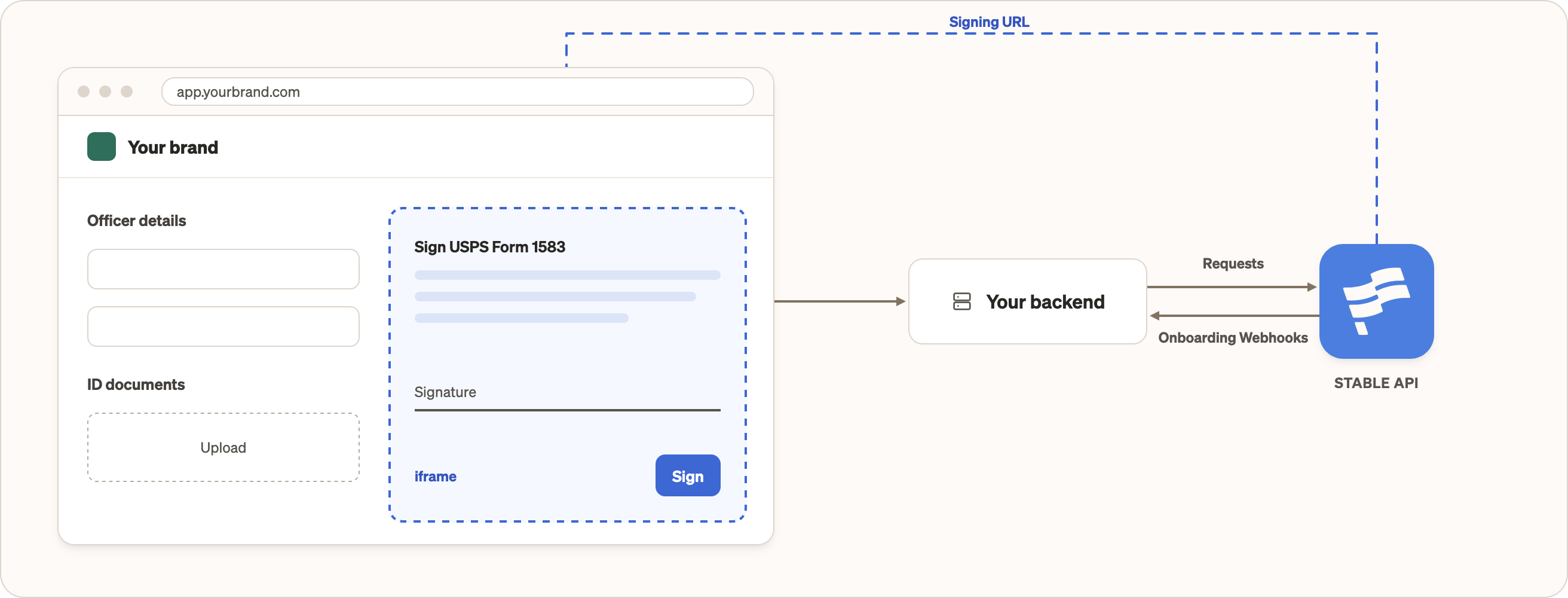
At a high level, the steps you'll complete are:
- Create the location via the API.
- Collect and submit officer information in your application.
- Request temporary upload URLs to securely upload identification documents.
- Create a Signature Packet and generate a signing URL.
- Embed the signing URL in your UI.
- Listen for location webhooks to know when the address is fully authorized.
Before you start
- You must have an API key.
- To get sandbox access, see Developer Sandbox.
- Note that the term Location may be used interchangeably with "address" in this recipe.
Step 1: Create the address
Select a location (Location codes) and create the address using the Create a location API. The address can immediately receive mail prior to authorization, so you might choose to expose it to the customer at this point.
Request:
curl -X POST https://api.usestable.com/v1/locations \
  -H "x-api-key: your-api-key" \
  -H "Content-Type: application/json" \
  -d '{
    "locationCode": "SFO1",
    "autoScan": true
  }'
Response:
{
  "id": "6510b338-57d9-4aac-8e84-fb047ae42e86",
  "status": "active",
  "address": {
    "line1": "2261 Market Street",
    "line2": "#4962",
    "city": "San Francisco",
    "state": "CA",
    "postalCode": "94114"
  },
  "type": "cmra",
  "onboarding": {
    "status": "authorize"
  },
  "metadata": null
}
Notice the following:
- The top level
statusisactive, butonboarding.statusisauthorize. This indicates that the address is ready to use but not fully authorized. - The full address is provisioned and can optionally be exposed to the end user at this point.
Step 2: Submit USPS Form 1583 information
Collect authorization details in your own UI, then send the values to the Onboard a location - Prefill endpoint.
Request:
curl -X POST https://api.usestable.com/v1/locations/$LOCATION_ID/onboard/prefill \
  -H "x-api-key: your-api-key" \
  -H "Content-Type: application/json" \
  -d '{
    "submissionType": "business",
    "legalBusinessName": "Happy Inc.",
    "phone": "4151112222",
    "placeOfRegistration": "Delaware",
    "businessType": "Technology",
    "firstName": "Jane",
    "lastName": "Doe",
    "email": "[email protected]",
    "officerRole": "Founder",
    "isCompanyOfficerConfirmed": true,
    "primaryIdType": "passport",
    "primaryIdNumber": "987654321",
    "primaryIdIssuingEntity": "United States",
    "primaryIdExpirationDate": "2035-12-31",
    "secondaryIdType": "utility_bill",
    "secondaryIdAddress": {
      "line1": "456 Elm Street",
      "line2": "Suite 200",
      "city": "Austin",
      "state": "Texas",
      "postalCode": "73301",
      "country": "US"
    }
  }'
Response:
{
  "id": "9f2f1342-630e-48ad-a2e3-bca9f126c56e",
  "expiresAt": "2024-11-06T00:00:00.000Z",
  "url": "https://dashboard.usestable.com/location/$LOCATION_ID/onboard/authorize/business?key=bd1a413ba8709e6257d2b07e"
}
Note the following:
urlis an authenticated link to a partially filled USPS Form 1583. You can use thisurlto complete information and document collection in a Stable-hosted form, optionally with our branding stripped. This recipe assumes you are collecting all fields in your own UI and not usingurl.expiresAtcorresponds to this authenticatedurl.
Step 3: Upload required documents
After submitting the USPS Form 1583 information, you'll need to upload three required documents. For each document, this is a two-step process:
- Retrieve a secure upload URL for the specific document.
- Upload the document using the provided URL within 2 minutes.
The three documents are:
primary: Government-issued photo ID that must clearly show the applicant's photo and name. Learn more.secondary: A proof-of-address document. Learn more.selfie: A clear photo of the applicant holding their primary ID. Learn more.
The following file types are supported:
- Images:
jpg,jpeg,png,heic. - Documents:
pdf(without password protection).
Retrieve an upload URL
For each document, you need to request a pre-signed upload URL. It's recommended that you generate this URL during submission, since the URLs are short-lived.
Request:
curl -X POST https://api.usestable.com/v1/locations/$LOCATION_ID/onboard/upload-urls \
  -H "x-api-key: your-api-key" \
  -H "Content-Type: application/json" \
  -d '{
    "type": "primary",
    "fileType": "jpg"
  }'
Response:
{
  "uploadUrl": "..."
}
Note the following:
- You will need to call this for
primary,secondary, andselfie. - The upload URL will be a pre-signed URL with an expiration of 2 minutes.
- You will use
PUTto upload a document in the next step.
Upload documents
Use the pre-signed URL to upload your document. Make sure to set the correct Content-Type header for your file.
Request:
curl -X PUT "UPLOAD_URL_FROM_PREVIOUS_RESPONSE" \
  -H "Content-Type: image/jpeg" \
  --data-binary @/path/to/id.jpg
A successful response will return HTTP 200:
HTTP/1.1 200 OK
x-amz-request-id: 7B4A0FABBG9ADFCA
Date: Wed, 06 Nov 2024 20:00:00 GMT
ETag: "828ef3fdfa96f00ad9f27c383fc9ac7f"
Content-Length: 0
If you try to upload to an expired URL, you will receive HTTP 403 with a response like the following:
<Error>
  <Code>AccessDenied</Code>
  <Message>Request has expired</Message>
  <Expires>2024-12-05T21:23:35Z</Expires>
  <ServerTime>2024-12-05T21:24:01Z</ServerTime>
  <RequestId>PSH8ANGEQMG1FP0M</RequestId>
  <HostId>nhWJL3qKT6tEuqHIF4KdemO3Kuui41PYml2nrXaJS+NAP7JEZjYL/ZdX8GChK02painc8Ac3zKk=</HostId>
</Error>
You can re-request the URL and retry the upload in this case.
Step 4: Create a signature packet
A Signature Packet represents the set of electronic signatures that need to be collected for a single Location after onboarding information is submitted. When you create the Signature Packet, you can embed a white-labeled signing URL in your UI to collect signatures from your users.
Use the Create a location's signature packet API to create the packet:
curl -X POST https://api.usestable.com/v1/locations/$LOCATION_ID/onboard/signature-packet \
  -H "x-api-key: your-api-key"
Response:
{
  "id": "24f15197-118d-457c-8995-522164cb144d",
  "expiresAt": "2026-01-06T00:00:00Z",
  "url": "https://dashboard.usestable.com/location/$LOCATION_ID/onboard/authorize/business?embedded=true&key=bd1a413ba8709e6257d2b07e"
}
Note the following:
- The returned URL expires after 30 days. As best practice, you should request a new URL each time you present this URL to your end user. See: Retrieve a location's signature packet.
- When you create a Signature Packet, the Location's
onboarding.statuswill update tosign. You can use this field to decide whether you need to go through this flow when returning to an existing address. - If, for some reason, you need to invalidate signing (such as changing information collected in an earlier step), you can
DELETEthe signature packet. This will change the Location'sonboarding.statusback toauthorize.
Step 5: Embed signing in your UI
Once you've generated a Signature Packet and its URL, you can embed the URL in two ways:
- Embed the URL in an IFrame component.
- Open the URL using
window.open()to open a popup.
Styling
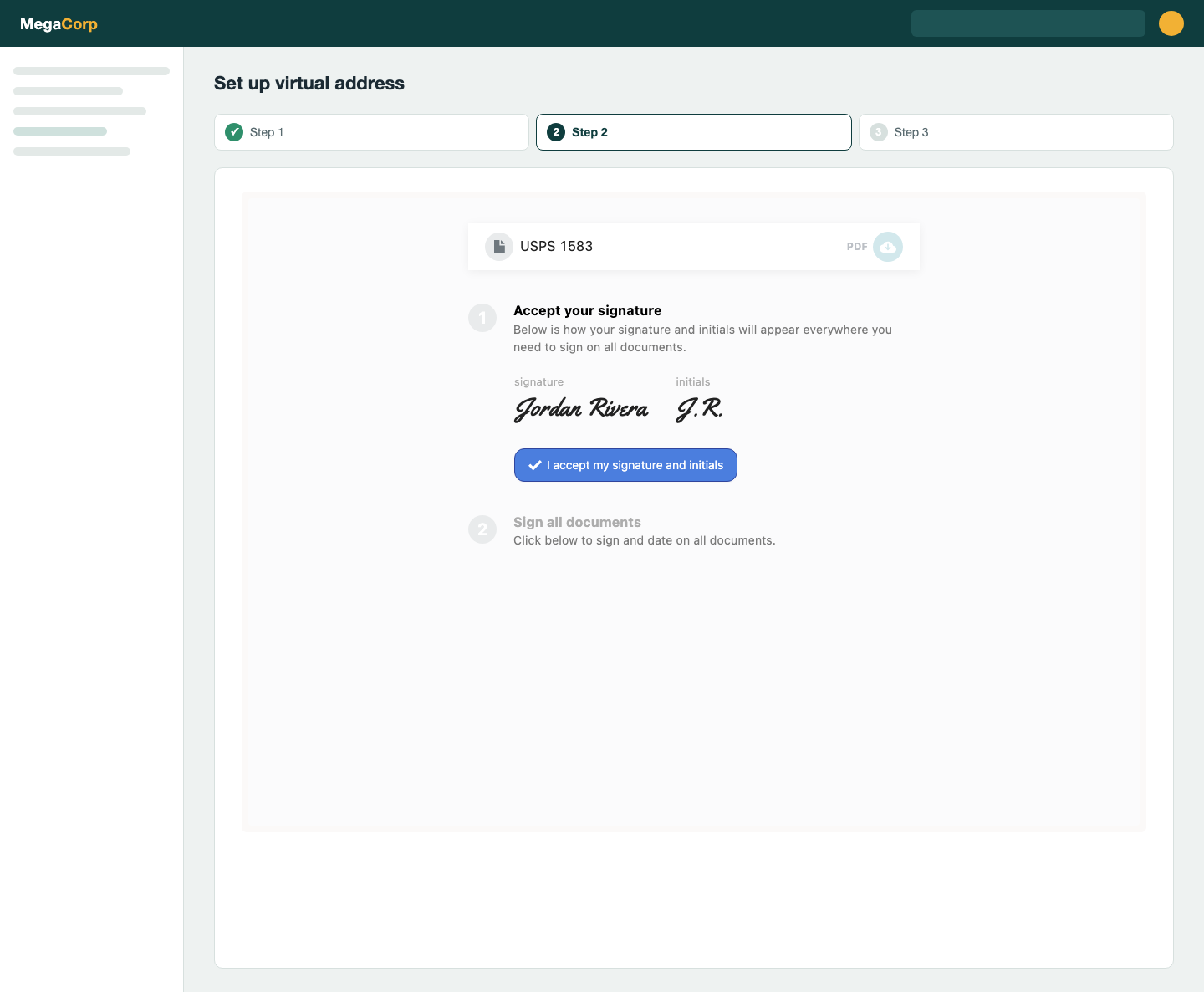
In both of the embedding approaches, Stable will not include any branding. The screenshot below shows default styles, which can be overridden with your application's branding. Custom stylesheets are in closed beta, and you can reach out to set this up for your integration.
Embedding (IFrame)
To embed the signing in an IFrame, create the element and register an event listener:
<div id="stable-sign-container">
  <iframe
    id="stable-sign-frame"
    title="Sign USPS 1583 form"
    style="width: 100%; max-width: 900px; height: 800px; border: none;"
  ></iframe>
</div>

<script>
  const STABLE_ORIGIN = 'https://dashboard.usestable.com';
  const SIGNED_TYPE = 'stable.location.onboarding.authorization.signed';

  // `signUrl` is the `url` field returned by your backend's call to
  // POST /v1/locations/:id/onboard/signature-packet
  const loadSigning = (signUrl) => {
    document.getElementById('stable-sign-frame').src = signUrl;
  };

  window.addEventListener('message', (event) => {
    if (event.origin !== STABLE_ORIGIN) return;

    const { type, locationId } = event.data ?? {};
    if (type !== SIGNED_TYPE) return;

    document.getElementById('stable-sign-container').remove();
  });
</script>
Embedding (popup)
const STABLE_ORIGIN = 'https://dashboard.usestable.com';
const SIGNED_TYPE = 'stable.location.onboarding.authorization.signed';

// signUrl is the `url` returned by POST /v1/locations/:id/onboard/signature-packet
const popup = window.open(signUrl, 'stable-sign', 'popup,width=900,height=850');

window.addEventListener('message', (event) => {
  if (event.origin !== STABLE_ORIGIN || event.source !== popup) return;
  if (event.data?.type !== SIGNED_TYPE) return;

  popup.close();
  // Signing is complete for event.data.locationId
});
Reacting to signatures
When signing is successfully completed, the Stable embed posts a message to the parent window (IFrame) or opener (popup):
- Message:
stable.location.onboarding.authorization.signed - Additional data:
type: matches the message.locationId: the location ID for which the signature has been submitted.
Handle this message in your application to advance your UI (see the examples above). Note that this is not a webhook, but a browser event. If you prefer the event to come from your own origin, you can optionally host a redirect page and provide a redirect URL using Onboard a location - Prefill. This option is out of scope for this guide.
The location's onboarding status will transition automatically from sign to verify once this step has been completed.
Step 6: Monitor document verification
After your user signs the documents, our team performs verifications on all submitted information. You can track the progress of this verification through Webhooks and via the API.
The most common reasons for delays or rejections are mismatched information and unacceptable IDs. It's important to review our onboarding requirements and make the requirements clear to your end users.
The location's documents have been accepted when onboarding.status has transitioned to verify.
Webhooks
Configure a webhook endpoint to listen for location.onboarding.updated. The following transitions are important to monitor:
signtoverify: documents have been uploaded and signed by the end user, and are now undergoing verification by Stable. This process typically takes fewer than 48 hours.verifytocomplete: documents have been verified and Stable is authorized to open mail.verifytoauthorize: documents have been rejected, typically due to unacceptable IDs. You will need to have the applicant complete the signature process again.
API
You can check the onboarding status at any time using the Retrieve a location endpoint. Remember that the top-level status is distinct from the onboarding.status field.
Recap
You've built the workflow to create locations and integrated USPS 1583 filling and signature collection for your end users, and you can now offer addresses in your product with your own branding.
Keep these things in mind as you complete your integration:
- Addresses can be used immediately, but we cannot open and scan the physical mail items until this process is completed per address. Your UI needs to be aware of this state if you choose to present the address prior to authorization.
- Ensure you are educating your customers about our onboarding ID requirements to prevent delays and rejections.
- Use Webhooks for real-time status updates where possible.
Updated about 3 hours ago